> For the complete documentation index, see [llms.txt](https://docs.complyan.com/llms.txt). Markdown versions of documentation pages are available by appending `.md` to page URLs; this page is available as [Markdown](https://docs.complyan.com/complyan-modules/my-frameworks/implementing-controls.md).

# Implementing Controls

To view all controls and sub-controls under a framework and proceed to implementation:

* Select **Preview Controls** to see all controls specific to a domain.

<figure><img src="/files/CRtHv5K6NnUQMHtujByD" alt=""><figcaption></figcaption></figure>

* Or use **View Controls** to see controls across all domain and select **Report** to export a consolidated document of control information.

<figure><img src="/files/Z5MAFmmyYEt1Xs7CaO8g" alt=""><figcaption></figcaption></figure>

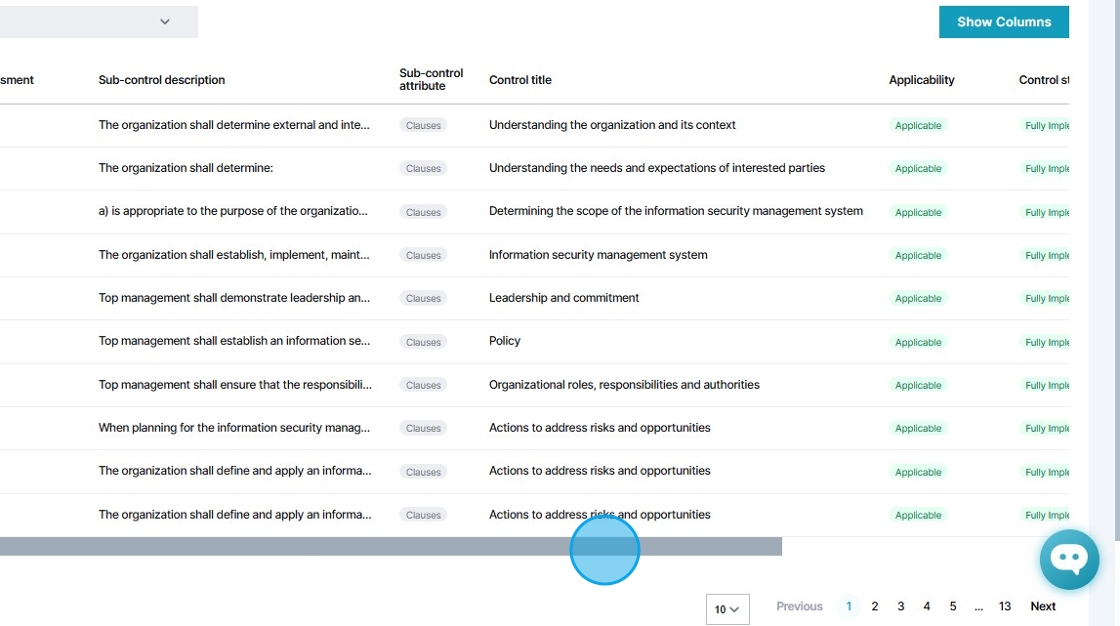
* Move the slider to reveal action buttons at the end of each control.

<div align="left"><figure><img src="/files/oD4nSYQdBp344xtMhTH2" alt=""><figcaption></figcaption></figure> <figure><img src="/files/SjrmigAA7u36KSpFMzBv" alt=""><figcaption></figcaption></figure></div>

* Select **Edit** to begin.

<figure><img src="/files/8LvB6OMdtNIcRh9J5EsZ" alt=""><figcaption></figcaption></figure>

* Determine whether the control is relevant to your organization and select **Applicable** or **Not Applicable** and proceed.

<figure><img src="/files/DWZHcZAa1Rxowg13mTor" alt=""><figcaption></figcaption></figure>

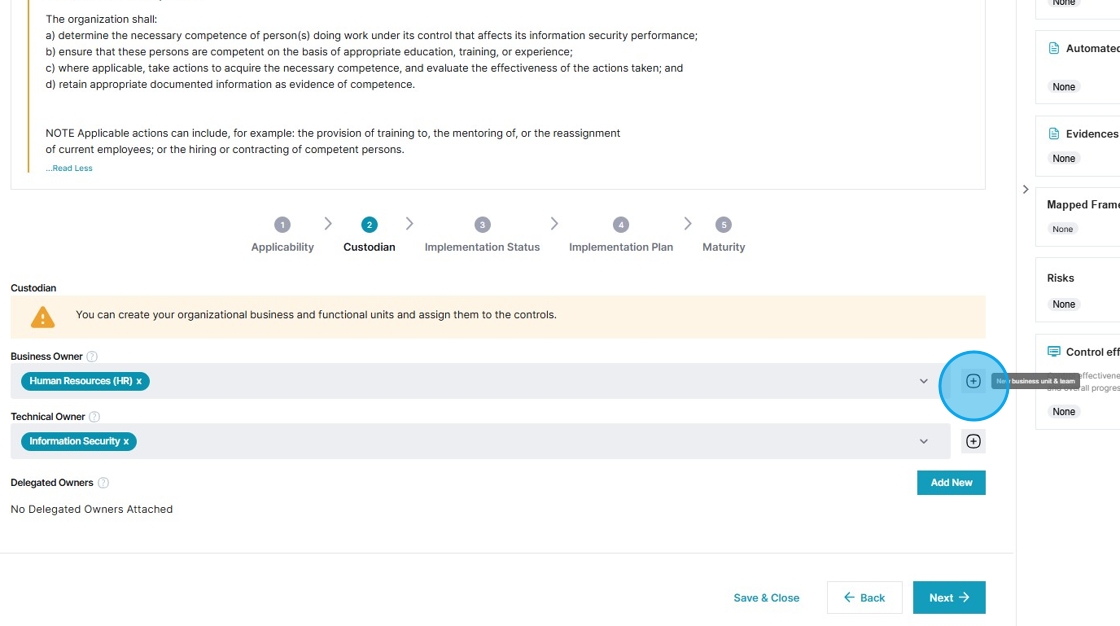
* Select custodians for the control under **Business Owner** and **Technical Owner**. Click on the highlighted button to create new business units.

<figure><img src="/files/hg70lC543br5Q7aBSYyH" alt=""><figcaption></figcaption></figure>

<figure><img src="/files/Ysl6m5ZDfJogs4Iju5sk" alt=""><figcaption></figcaption></figure>

* Toggle the RUN switch on top of the control implementation pane to use Complyan's AI feature in filling out details.\
  \
  ![](/files/ULTXZQYJ3NHlh5vCGF1M)<br>
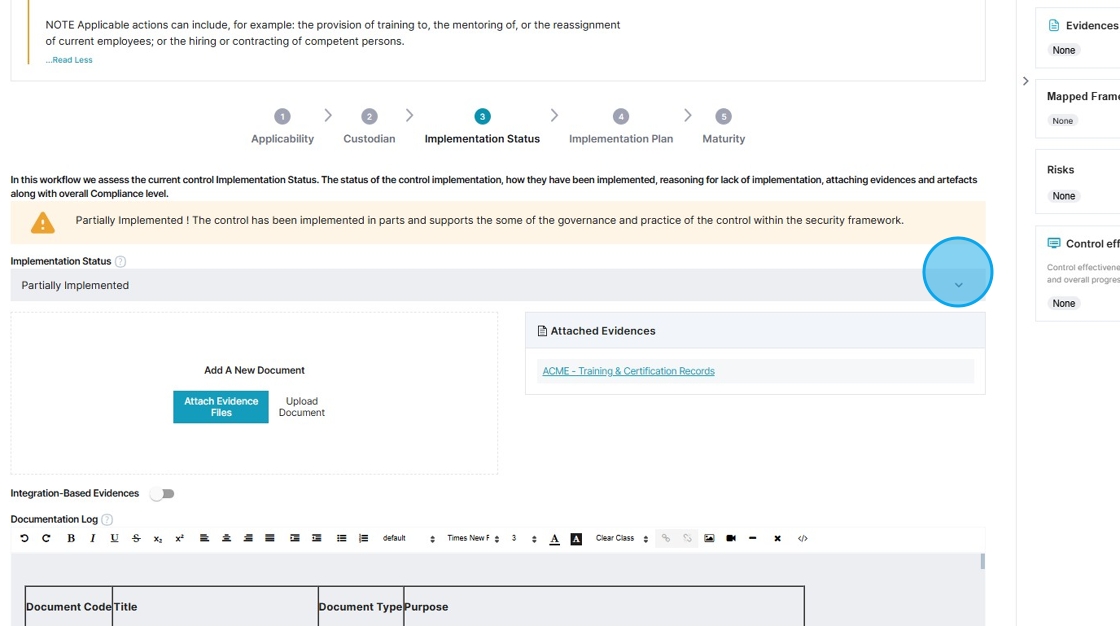
* Click to select **Implementation Status.**

<figure><img src="/files/wHIm16Mnl0sfksJriqAl" alt=""><figcaption></figcaption></figure>

<figure><img src="/files/Q2vwXNSOAPizsidd98KZ" alt=""><figcaption></figcaption></figure>

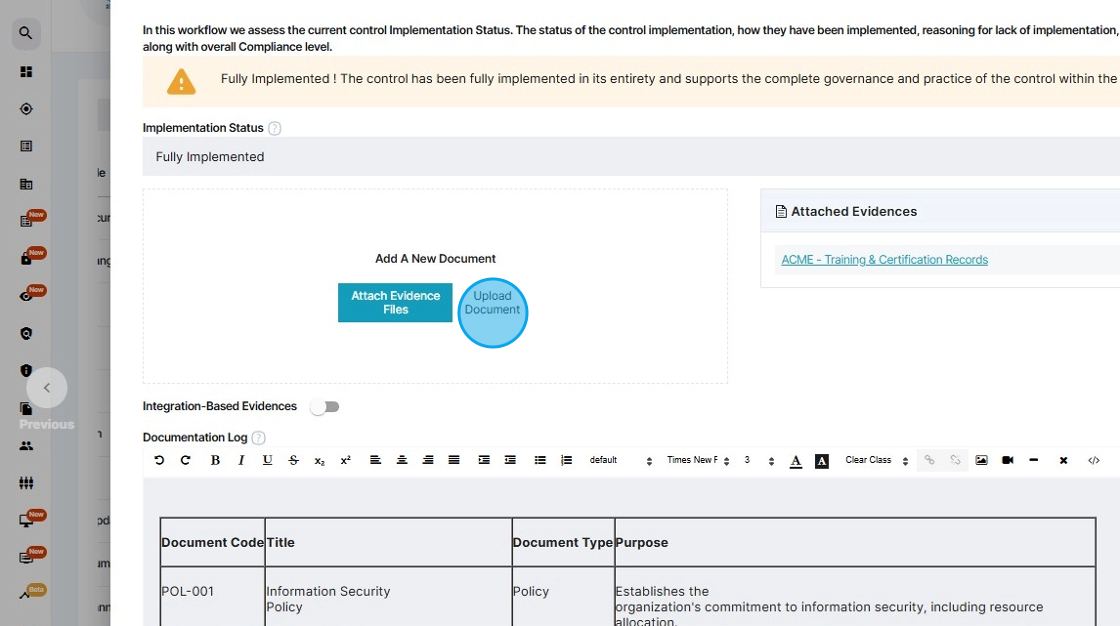
* Attach evidence of implementation by uploading or selecting from files you have previously uploaded.

<figure><img src="/files/tiPuWmQdBfJPvsh5azKw" alt=""><figcaption></figcaption></figure>

* Enter a list of documents relevant to the implementation of the control. Extend the size of the text box by using the arrow at the highlighted edge.

<figure><img src="/files/zkgauLjpug5XEYGKV51U" alt=""><figcaption></figcaption></figure>

* Enter details of implementation of this control in your organization.

<figure><img src="/files/68kb2xbw35ReCMmIqn9p" alt=""><figcaption></figcaption></figure>

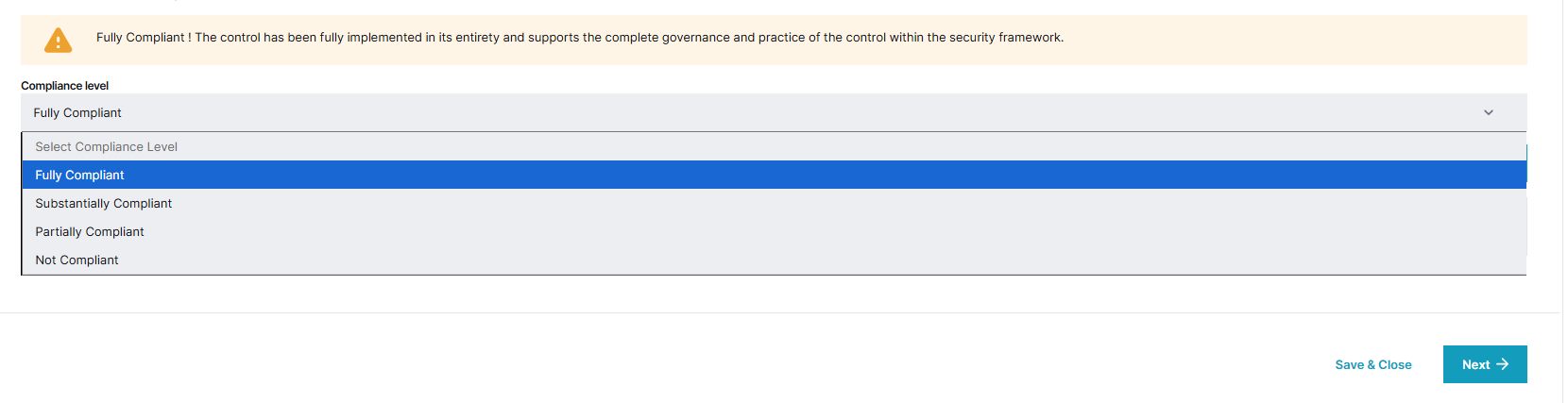
* Select **Compliance Level.**

<figure><img src="/files/jIrutWT16ZeSAWqNcBgr" alt=""><figcaption></figcaption></figure>

<figure><img src="/files/1hqc56hemOnYqifkg5Hh" alt=""><figcaption></figcaption></figure>

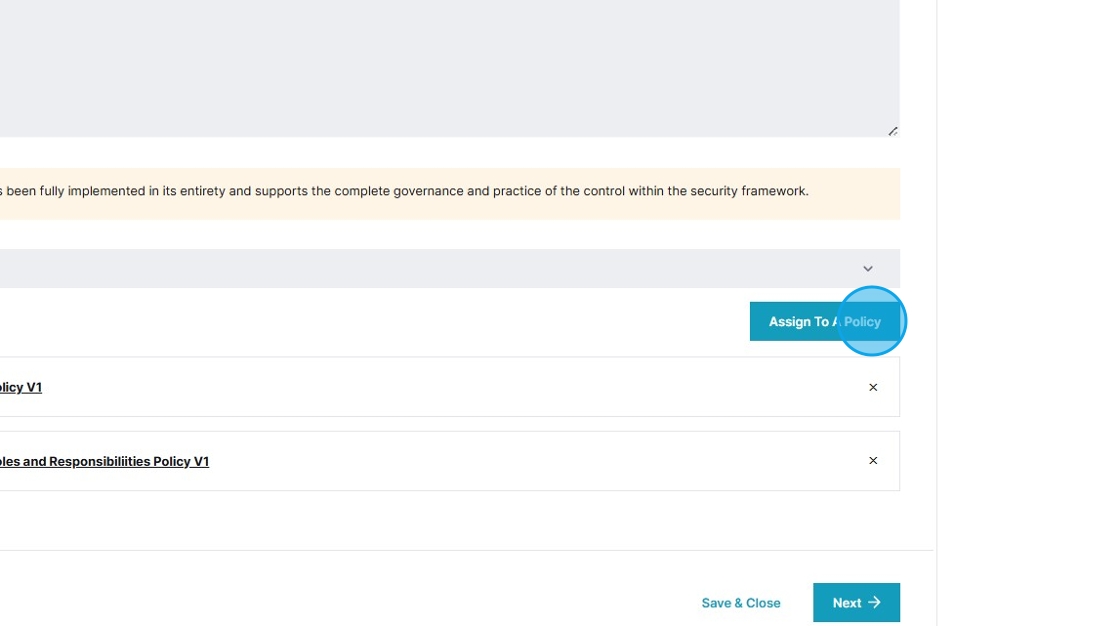
* Optionally, you can assign the control to a policy by selecting **Assign To A Policy**.

<figure><img src="/files/C1JPnrXYCREHpPujMB6M" alt=""><figcaption></figcaption></figure>

* If any selection is made other than **Fully Implemented**, you will be required to enter a plan to meet full implementation.

<figure><img src="/files/WnHMHSJjfP5v30K7Qg2D" alt=""><figcaption></figcaption></figure>

* Finally, select maturity at **Governance** & **Technical** levels and select **Submit**.

<figure><img src="/files/87awYK7e7t8tjdK5d9o1" alt=""><figcaption></figcaption></figure>

* Use the highlighted action button to preview all details you have entered.

<figure><img src="/files/nS06YkIDEGCK9de4WdLH" alt=""><figcaption></figcaption></figure>

<figure><img src="/files/nrFjEoIsaXxXPeE3l49t" alt=""><figcaption></figcaption></figure>

* You can also leave comments in this section.

<figure><img src="/files/2SgQMtuxEfj0paoipUX8" alt=""><figcaption></figcaption></figure>

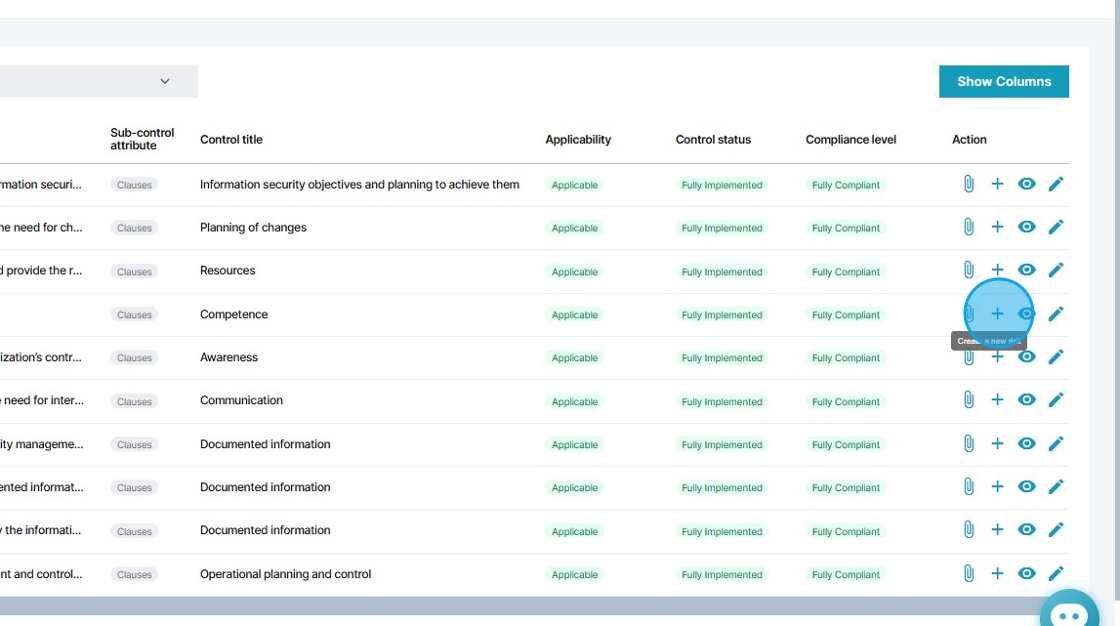
* Select the highlighted icon to link control to an existing risk

<figure><img src="/files/gLecQx7KYtxi24l04XSU" alt=""><figcaption></figcaption></figure>


---

# Agent Instructions
This documentation is published with GitBook. GitBook is the documentation platform designed so that both humans and AI agents can read, navigate, and reason over technical content effectively. Learn more at gitbook.com.

## Querying This Documentation
If you need additional information that is not directly available in this page, you can query the documentation dynamically by asking a question.

Perform an HTTP GET request on the current page URL with the `ask` query parameter, and the optional `goal` query parameter:

```
GET https://docs.complyan.com/complyan-modules/my-frameworks/implementing-controls.md?ask=<question>&goal=<endgoal>
```

`ask` is the immediate question: it should be specific, self-contained, and written in natural language.
`goal` is optional and describes the broader end goal you are ultimately trying to accomplish on behalf of the user. GitBook uses it to tailor the answer towards what is most useful for that goal.

The response will contain a direct answer to the question and relevant excerpts and sources from the documentation.

Use this mechanism when the answer is not explicitly present in the current page, you need clarification or additional context, or you want to retrieve related documentation sections.